
Employer Brand Videos With AI: 10 Use Cases
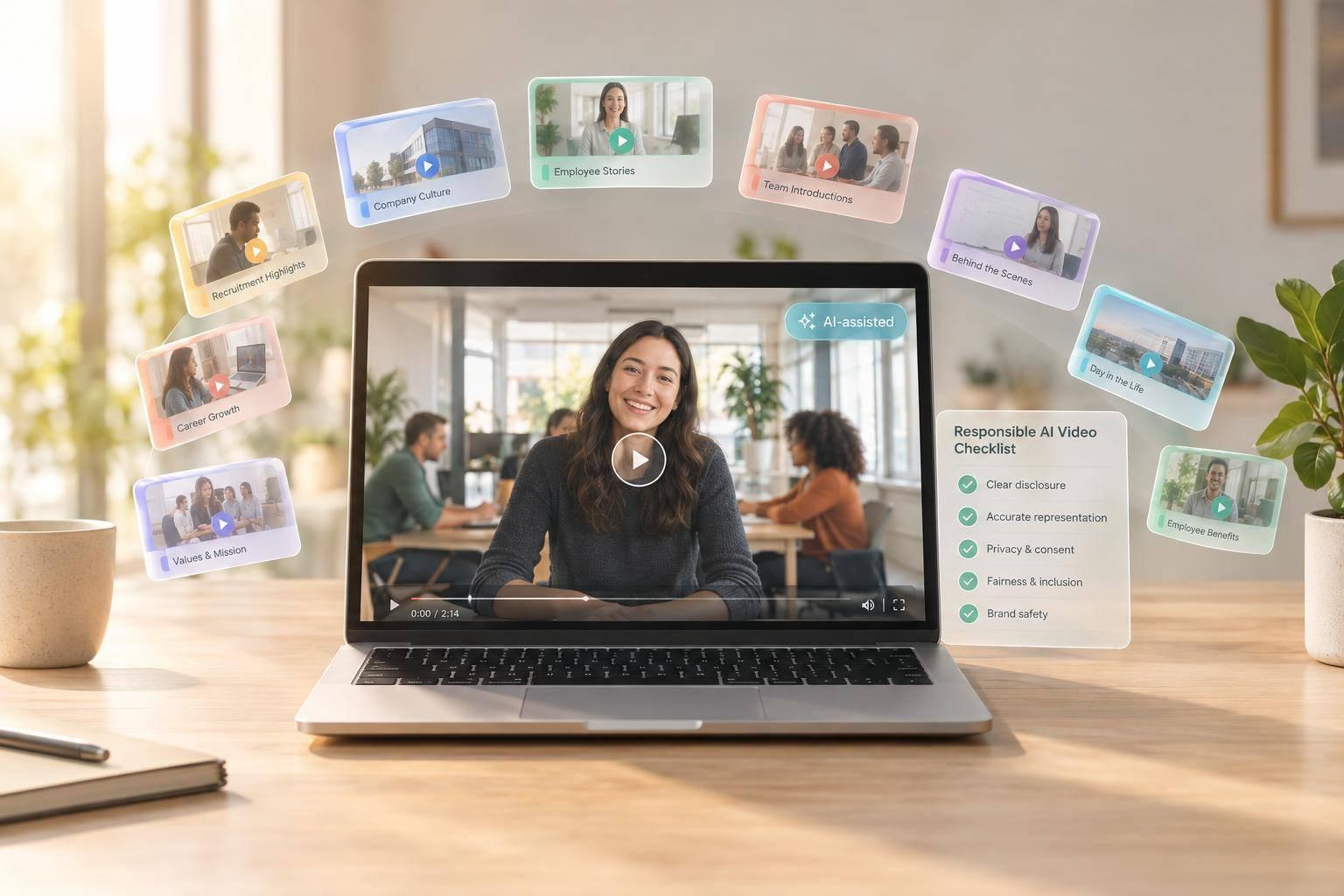
Employer Brand Videos With AI: 10 Use Cases
I’d start with one AI employer-brand video that answers a question candidates keep asking. Use verified facts, label synthetic presenters, and get human approval before posting. For many formats, a 30-second video with one clear next step is enough.
This guide covers 10 ways to help candidates decide whether to apply:
- Team spotlights: Show how the team works together.
- Company values: Link a stated value to a documented practice.
- Founder and executive messages: Explain the mission and how open roles fit.
- New-hire stories: Share employee-approved reasons for joining and onboarding details.
- Hiring event promos: Explain who should attend and what’s planned.
- Day-in-role videos: Separate routine tasks from occasional work.
- Application and interview explainers: Show the steps, requirements, and accommodation contacts.
- Hiring manager introductions: Explain leadership style and team expectations.
- Employee growth and career paths: Share a verified development story without promising promotions.
- Benefits and work flexibility: Clarify eligibility, start dates, and location rules.
My rule: <u>use AI to explain approved information - not to invent employee experience.</u> Get written permission before cloning anyone’s face or voice, and check every platform version for readable labels and captions.
I’ll also cover Sun Scroller’s Brief → Produce → Approve → Post workflow, with the employer responsible for facts, consent, and compliance.
What Digital Presenters Can and Cannot Represent
A digital presenter is a synthetic speaker or stylized character. An authorized digital replica is a custom avatar of a specific person, built from approved source footage or data and often paired with voice cloning. The difference matters: each format has limits on what audiences can trust it to represent.
Use these presenters for approved scripts and repeatable, information-heavy employer-brand messages - not firsthand employee testimonials. They can explain an application process, introduce a hiring event, or narrate a company origin story. But they cannot claim actual workplace experience. These videos draw on the trust people place in human speakers, so they need clear labels.
Label every synthetic presenter and generated workplace scene so candidates don’t mistake them for real people or offices. Put disclosures above the fold and visibly within the video from the start. Check every version to make sure disclosures remain readable after cropping, resizing, or platform overlays. A human reviewer should verify accuracy, disclosure placement, and on-brand tone, then confirm the final cut is ready to publish.
1. Team Spotlight Videos
Use team spotlight videos to show team culture without claiming firsthand experience. Show how the team works, rather than just describing it.
Candidate Question
Candidates want to know who they would work with and how the team collaborates. Share verified team details, recurring rituals, and whether work happens asynchronously or through meetings. This format works best when candidates need proof of team fit - not a vague claim about culture.
Video Goal
Show the team at work through a specific workflow and a quote from a current employee.
Digital-Presenter Format
Create a captioned 30- to 60-second video with a digital presenter serving as the narrator avatar. For a 30-second cut, use a hook (0–3 seconds), team facts (3–10 seconds), an employee quote and supporting evidence (10–25 seconds), and a clear call to action (25–30 seconds).
For longer cuts, give the evidence more time and keep the call to action at the end.
Message Checks
Ask the team lead to confirm current workflows and the quoted employee to approve their quote. Check captions and on-screen text for correct names and terms, timing, and placement within safe zones. Use timestamped feedback so reviewers can flag the exact line or frame that needs a change.
2. Company Values Videos
Team spotlights show how people work. Values videos explain why those choices matter.
Candidate Question
Candidates want proof that company values guide everyday decisions. What workplace problems do those values help solve? Which documented practices show they matter?
Video Goal
Link one value to one documented practice. Explain the problem it solves, then show the decision or process that puts the value into action.
Digital-Presenter Format
Use the digital presenter to narrate - not to make first-person claims about working at the company. Pair the narration with visuals of the practice. Let the evidence speak during the 10–25-second proof segment.
Message Checks
Have a human reviewer check that the script, tone, and visuals match the documented practice.
Next, shift from values to leadership by showing who sets the message.
3. Founder and Executive Messages
Candidate Question
Why does this company exist, where is it headed, and why should I apply? Candidates need to see how the leader’s mission connects to the roles you’re filling.
Video Goal
Use an approved leadership script to explain the industry problem, where the company is headed, and how the candidate fits in. For a 30-second cut, end with one action, such as applying.
Digital-Presenter Format
Use a real recording when trust matters most. Choose an approved replica when you need to share the same approved message across languages and platforms.
Message Checks
Build the script from verified brand materials. If you use a synthesized leader video, clearly disclose it. Complete message, technical, and compliance reviews before publishing.
Once the leadership message is approved, move to employee stories that show that vision in practice.
4. New-Hire Stories
After leadership messages, shift to a new hire’s firsthand experience.
Candidate Question
Why did they join, and what did their first week look like? Focus on their reasons for joining and what their first week involved so candidates can judge whether the role fits.
Video Goal
Build the 30-second video around a hook (0–3 seconds), the reason for joining (3–10 seconds), onboarding proof (10–25 seconds), and one call to action (25–30 seconds).
Digital-Presenter Format
Use an AI avatar to narrate employee-approved quotes. Clearly identify the employee as the source of the story.
Message Checks
Label the avatar as AI-generated, and keep onboarding claims tied to that employee’s actual experience. Make clear that one person’s first week isn’t a promise for every hire. Have the employee review the wording, delivery, and final visuals before publication.
Place the disclosure in safe zones where platform overlays won’t cover it.
5. Hiring Event Promos
Candidate Question
Is this event for my level, and what will I do there? Make clear who should attend, including the target roles or experience levels. Explain what attendees will learn or do without suggesting a job offer.
Video Goal
Turn interest into event registrations.
Describe the confirmed agenda, such as a role overview or speaker introductions.
Only mention interviews if they’re scheduled.
Digital-Presenter Format
Use a digital presenter to deliver the invitation, paired with approved venue footage or agenda graphics. End with one registration CTA, using the same wording in the spoken line and on-screen text.
Message Checks
Ask the event owner to verify the date, time zone, and live registration link. Confirm accessibility details, review captions manually, and label the presenter as AI-generated before publishing.
Next, show the day-to-day work so candidates can compare the event promise with the role itself.
6. Day-in-Role Videos
Once you’ve invited candidates in, show what the role looks like day to day.
Candidate Question
What would I do every day? Show routine tasks separately from occasional work.
Video Goal
Help candidates decide whether the role fits them and compare what they see with the job posting.
Digital-Presenter Format
Use the presenter to narrate approved workplace footage or labeled illustrations. Structure a 30-second clip around a hook (0–3 seconds), routine tasks (3–10 seconds), work in action (10–25 seconds), and a call to action linking to the job description (25–30 seconds).
Message Checks
This format can make unusual work look routine, so check that the footage reflects how often each task happens. Ask an employee and hiring manager to verify schedules, workload, workplace conditions, safety rules, and site-specific differences.
Check that generated settings don’t suggest working conditions you haven’t verified. When resizing, keep safety gear and key workplace details visible within safe zones.
7. Application and Interview Explainers
Once candidates understand the role, show them how to apply and what happens next.
Candidate Question
What happens after I apply? What should I prepare? Who handles interview accommodations? Answer these questions with current, recruiter-approved instructions that match the live hiring workflow.
Video Goal
Reduce application drop-off by explaining the requirements, interview stages, and next steps. Help candidates turn interest into a completed application - without implying that finishing the process guarantees an offer.
Digital-Presenter Format
Pair a digital presenter with a simple step-by-step graphic showing the application and interview process. In the middle segment, explain what candidates need to do next. End with one CTA that directs them to the official application page.
Message Checks
Ask a recruiter to verify the required materials, interview stages, accommodation contacts, and application link. Remove any promises of a hire or response time. Update the video whenever the process changes.
8. Hiring Manager Introductions
Once candidates understand the process, introduce the manager they’d work with.
Candidate Question
How does this manager lead, and what does success look like? Answer that fit question with the approved message.
Video Goal
Help candidates judge whether they can trust the manager, understand team expectations, and see what success requires. Make the leadership style concrete with one team challenge, one approach, and one proof point.
Digital-Presenter Format
Use a custom avatar of the manager or a clearly labeled synthetic talking-head avatar. Don’t present a narrator as the actual hiring manager.
Keep the video to 30 seconds: a role hook at 0–3 seconds, the team challenge at 3–10 seconds, the leadership approach and proof at 10–25 seconds, and one clear CTA at 25–30 seconds.
Message Checks
Have the manager approve leadership statements and success criteria against the current job description. Request timestamped feedback wherever delivery changes the meaning. Before publishing, check captions, disclosure, tone, and accurate labeling.
Once candidates understand the manager’s approach, show how employees grow in the role.
9. Employee Growth and Career Paths
Candidate Question
How do people grow here in practice? Show what learning, mentorship, and internal moves look like - not just job titles.
Video Goal
Share one verified development story and explain what made it possible. Tie the employee’s growth to documented milestones and business results, not simply time spent in a role.
Digital-Presenter Format
Use a digital presenter to tell the approved story. To make the narrator clearly separate from the employee, use a stylized character or mascot. Back up the story with verified evidence, such as a certification or a before-and-after role description. Don’t rely on narration alone.
Message Checks
Ask the employee to confirm the story and review the script, visuals, and tone before publication. Have HR check advancement criteria, eligibility requirements, and relevant business conditions. Don’t promise promotions or fixed timelines. Keep qualifying conditions visible in safe zones.
After showing growth, show the support that helps employees maintain it.
10. Benefits and Work Flexibility Videos
Once candidates understand career growth, they need the practical details that shape whether they’ll accept an offer.
Candidate Question
Which benefits apply to me, when do they start, and where can I work? Candidates need clear terms, not vague promises about benefits or flexibility.
Video Goal
Help candidates decide whether the role fits their needs before interviewing. Build the script around approved policy details, and cover one benefit or work arrangement per video.
Digital-Presenter Format
Use a UGC-style AI avatar or talking-head presenter for topics where trust matters, such as healthcare and work flexibility. Add on-screen text and captions to highlight eligibility, waiting periods, and location limits. End with a link to the relevant benefits guide or policy page.
Message Checks
Check eligibility, weekly hour requirements, coverage start dates, and waiting periods for health, dental, or 401(k) matching. Explain full-time, part-time, and contractor terms separately so candidates know which benefits apply to them.
For remote or hybrid roles, confirm approved locations, required office days, and role-specific restrictions. Remote doesn’t mean work from anywhere unless the policy explicitly says so.
Have HR or legal review the video and tie any corrections to exact timestamps before approval. Apply the same approval process to every synthetic presenter before publication.
Accuracy, Consent, and Review Checklist
Before publishing any AI employer-brand video, use this checklist for every use case above.
- Require human review and sign-off before publishing. Update or retire videos when job details, policies, leadership, or branding change.
- Get written permission before cloning an employee’s likeness or voice.
- Match the avatar’s expression and delivery to the brand voice. Check for any mismatch in tone.
- Check captions, safe zones, and localization. Manually verify names, speaker changes, timing, and numbers. Keep approved facts and tone unchanged across versions. Use U.S. spelling, $ for currency, and consistent U.S. date and time formats.
With the review step in place, the next section shows how Sun Scroller turns approved scripts into publish-ready videos.
Producing Employer-Brand Videos With Sun Scroller
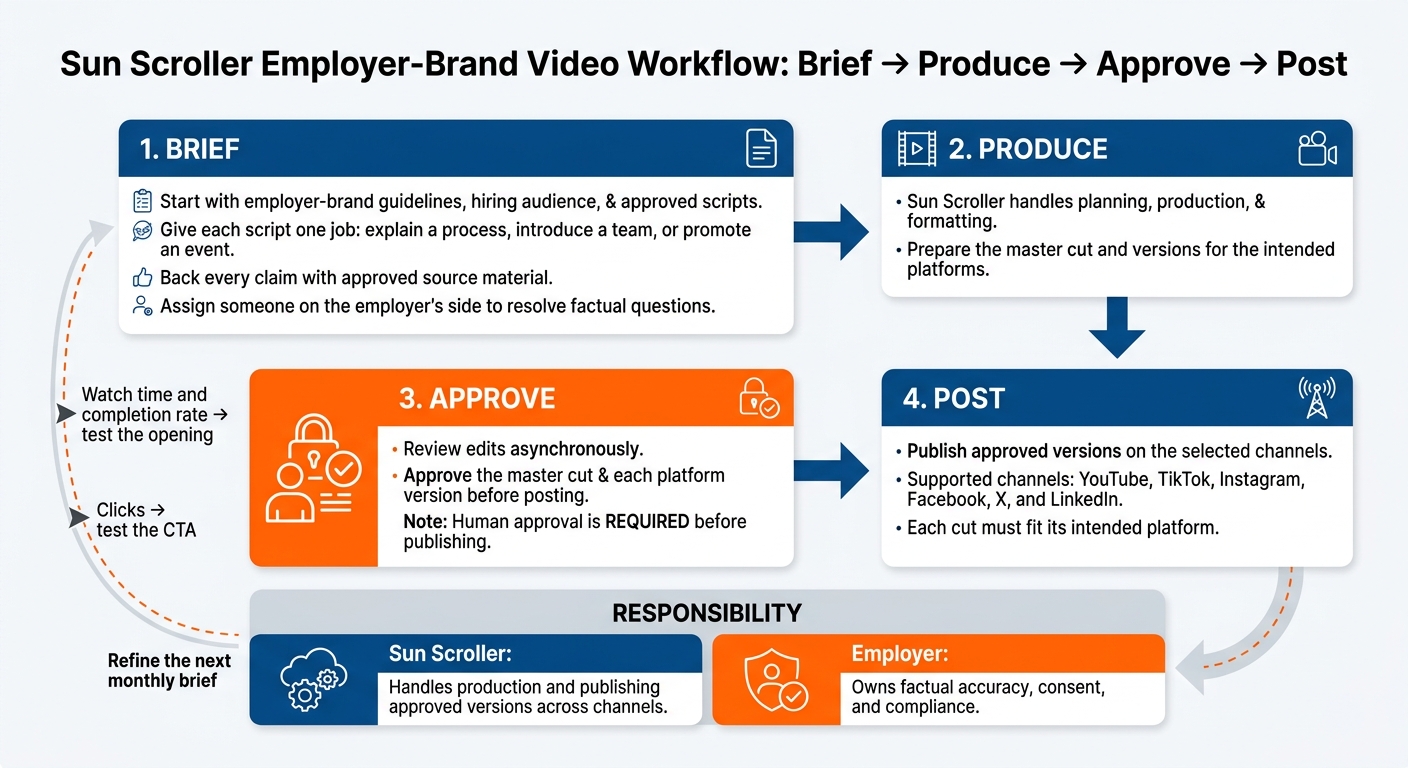
AI Employer-Brand Video Workflow: Brief to Post
Once the review rules are set, use this workflow to produce recurring employer-brand videos.
Sun Scroller is a done-for-you AI video service for recurring employer-brand content. It handles planning, production, formatting, and publishing approved versions across channels.
The workflow is Brief → Produce → Approve → Post. Start with your employer-brand guidelines, hiring audience, and approved scripts. Give each script one job: explain a process, introduce a team, or promote an event. Back every claim with approved source material.
Assign someone on the employer’s side to resolve factual questions. Sun Scroller handles production; the employer owns factual accuracy, consent, and compliance.
Review edits asynchronously, then approve the master cut and each platform version before posting. Sun Scroller supports publishing on YouTube, TikTok, Instagram, Facebook, X, and LinkedIn. Approve versions for the channels you plan to use so each cut fits its intended platform.
After publishing, use each channel’s analytics to shape the next monthly employer-brand brief. Watch time and completion rate help test the opening; clicks help test the CTA. Use those signals to refine both.
Conclusion: Start With 1 Verified Use Case
The 10 formats address different stages of the candidate journey and different needs: culture fit, trust in leadership, role clarity, and friction in the hiring process.
Choose your first video based on the recruiting bottleneck that hurts conversion most.
If candidates drop off during applications or interviews, prioritize an explainer; if candidate awareness is low, start with a team spotlight or hiring event promo.
Build that use case with verified facts and approved employee input. Before publishing, assign a person to own the review. This helps keep the video useful, fact-based, on-brand, and easy to update.
FAQs
How can I keep AI employer-brand videos authentic?
Keep human oversight in place throughout production. Build AI avatars, voices, and scripts around your brand’s own materials and tone. Review each video for clear, effective messaging, technical quality - including framing and audio - and claims and disclosures that meet brand standards.
Match the AI presenter’s age, wardrobe, and tone to your company culture. A mismatch can weaken trust or make the content feel robotic.
What should employee avatar consent cover?
Get a team member’s written consent before creating a synthetic avatar of them. Their consent must explicitly permit using their likeness to create a digital presenter.
How can I measure these videos’ recruiting impact?
View counts don’t tell the whole story. They can be misleading. Track engagement rates and the number of applicants your videos generate to measure candidate interest and conversion.
If you use Sun Scroller, check its per-channel analytics to see which video formats and channels send traffic to your careers page or application portal. Post consistently for at least four weeks to learn which hooks and content styles work best. Then focus on the videos that perform well.